

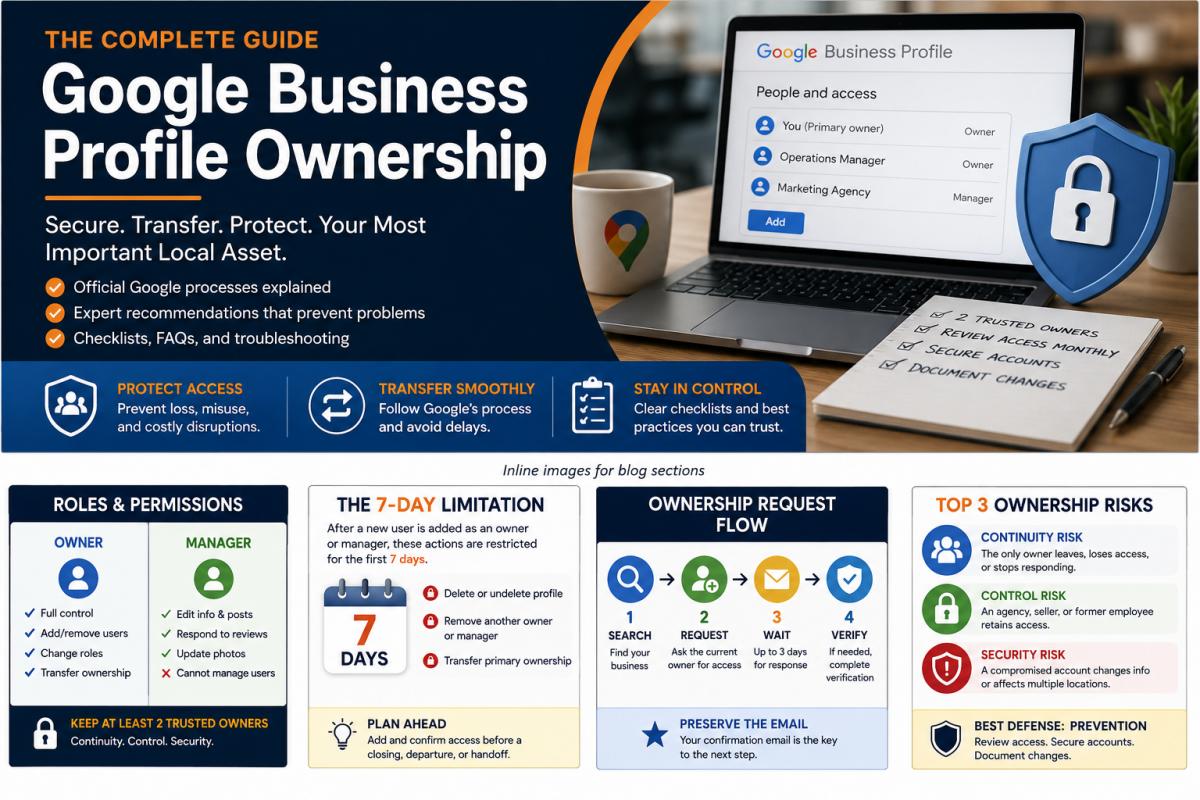
Business Owner Field Guide
The complete guide to ownership, security, transfers & recovery of your Google Business Profile.
Ownership of your Google Business Profile is as important as ownership of your business. A few simple controls can prevent a former employee, agency, buyer, seller, or attacker from putting a vital business asset in jeopardy.
Start with your situation
How to use this guide
A Google Business Profile (GBP), formerly called Google My Business (GMB), is the business listing an owner manages on Google Search and Google Maps. This guide uses “Business Profile” and “profile” to mean the same thing.
Google Business Profile ownership is both a product-permissions issue and a business-risk issue. This guide separates the two so you can tell what Google officially documents from what experienced practitioners recommend.
| Label | What it means |
|---|---|
| Official Google process | A procedure, permission, limitation, or policy supported by Google Business Profile or Google Account documentation. |
| Expert recommendation | Practical risk-management guidance informed by my experience with ownership disputes, agencies, purchases, and account compromises. |
| Reality check | A warning about situational outcomes, ambiguous product behavior, or consequences that business owners often underestimate. |
Google changes Business Profile interfaces and policies. Menu labels and available verification methods can vary by account, profile type, and case. Use the linked Google sources at the end for the latest interface instructions.
Contents
- Why ownership matters
- Roles and permissions
- Requesting ownership
- Inviting users and managing access
- Transferring a business
- Agencies, employees, and franchises
- Security and account protection
- Troubleshooting decision trees
- Myths vs. reality
- Best-practices checklists
- Frequently asked questions
- Glossary and sources
1. Why ownership matters
I see the same failures repeatedly: an employee leaves, a marketing partner created the profile without granting owner access, a sale closes before access transfers, or a franchise agreement never says who controls the listing. Each one can interrupt a business at exactly the wrong time.
A Google Business Profile can influence how customers find, call, visit, and evaluate a business. For many local businesses it is a major source of new opportunities. Yet ownership is often left out of employment offboarding, agency contracts, franchise agreements, and acquisition due diligence.
How can someone spend any amount of money buying a business and forget the asset that may drive a large share of its new customers? You would not close a transaction without addressing bank access. Treat the Google Business Profile, website, domain, customer records, and other digital assets with the same discipline.
Three kinds of risk
| Risk | What can happen | Preventive control |
|---|---|---|
| Continuity | The only owner leaves, loses the account, or stops responding. | Maintain at least two trusted owners and current recovery information. |
| Control | An agency, former employee, seller, or unauthorized user retains access. | Review People and access monthly and remove unneeded users promptly. |
| Security | A compromised account changes profile information, removes users, or affects many locations. | Use unique accounts, 2-Step Verification, recovery options, and regular security reviews. |
I have seen compromised accounts used to change profile names, addresses, phone numbers, websites, and categories — sometimes across every location in an account. I have also seen marketing companies remove profiles after a relationship ends. Ownership is governance, not housekeeping.
2. Roles and permissions
A Business Profile has two access roles — Owner and Manager — and one owner is designated Primary owner. A profile can have multiple owners but only one primary owner.
| Capability | Primary owner / Owner | Manager |
|---|---|---|
| Edit business information, posts, photos, reviews, and most daily settings | Yes | Yes |
| Add or remove users | Yes | No |
| Change user roles | Yes | No |
| Remove the profile from the account | Yes — destructive options have additional limits | No |
| Receive and act on ownership-related access requests | Yes — an owner-level responsibility | No — do not rely on manager access |
| Transfer primary ownership | Yes — through People and access, subject to the seven-day limitation | No |
Google describes owners as having full control and managers as having mostly the same day-to-day access, except managers cannot add or remove users or remove the profile. Google’s transfer page contains inconsistent summary wording about who can initiate a primary-owner change, but its procedure says owners can change access roles, including primary ownership. The practical control is the option shown in People and access.
The seven-day limitation
Google applies temporary restrictions when someone becomes an owner or manager. During the first seven days, the new user may receive an error when trying to:
- Delete or undelete a profile.
- Remove another owner or manager.
- Transfer primary ownership.
If the new user removes their own account during those first seven days, they must be added again. Plan transfers before a closing date, employee departure, or agency handoff so this waiting period does not create a gap.
Keep a minimum of two trusted owners: the person or organization responsible for the business and a carefully chosen backup. Owner access is powerful. Give it only to people you trust with the livelihood of the business.
3. Requesting ownership
Use the ownership-request process when a verified profile for your business is controlled by another account. Do not create a replacement profile merely because you cannot access the existing one. Multiple profiles for the same business can be treated as duplicates and create a second problem.
Storefront and hybrid businesses
- Sign in to the Google Account you want to use.
- Go to business.google.com/add and search for the business by name and address.
- Choose the correct existing profile.
- When Google says someone else may manage the profile, select Request Access.
- Complete the form and submit the request.
- Save the confirmation email. The confirmation email is the key to checking status and continuing the process.
Service-area businesses
For a service-area business that serves customers at their locations and has no customer-facing storefront, Google directs users to contact Business Profile support. Select or enter “Transfer ownership of listing” as the issue description.
What happens next
| Outcome | Google’s documented result | What you should do |
|---|---|---|
| Approved | You receive an approval email and can manage the profile. | Review People and access; remember the seven-day limitation. |
| Denied | You receive a rejection email. Google says you may suggest an edit or try to appeal. | Use the option in the email or profile; collect evidence connecting you to the business. |
| No response after 3 days | You may be offered Claim or Verify. Google says the option is not always available. | Open the confirmation email, select View request, and look for Verify; also check the profile while signed in. |
The most avoidable ownership-request failure is losing Google’s confirmation email. Flag it, archive it, and keep it until the case is resolved. The blue View request button is often the path to the next step.
If you receive an ownership request that is not legitimate, do not ignore it. Review it promptly and deny it. Google’s current help page gives the owner three days — not seven — to respond before the requester may be offered a claim or verification path.
Evidence and verification
A no-response or denied request does not mean Google automatically hands over the profile. When verification is offered, the business must complete the method Google makes available. Methods and evidence vary. The objective is to establish that the requester is authorized and the real business exists and operates as represented.
In my experience, recovery is generally achievable when the requester can prove a legitimate relationship to a real business. Ownership is complicated, but it is not hopeless. Follow the exact path offered in the account and provide consistent evidence when requested.
4. Inviting users and managing access
Add an owner or manager
- Open the Business Profile while signed in as an owner.
- Select More, then Business Profile settings, then People and access.
- Select Add.
- Enter the user’s Google Account email address.
- Choose Owner or Manager.
- Select Invite. The user becomes active after accepting.
Each person should use their own Google Account. A Google Account can use Gmail or another email address. Google Groups cannot be added as owners or managers.
Pending and incorrect invitations
Pending invitations appear in People and access. If you used the wrong address, cancel the pending invitation and invite the correct account. If an invitation expires or cannot be used, remove or cancel it and send a new one. When troubleshooting, confirm the exact address invited, check spam, and make sure the recipient is signed into that same Google Account — not merely an account with a similar name.
Prefer company-domain Google Accounts or Google Workspace accounts where practical. Use personal-name accounts for individual accountability; a role account such as marketing@company.com can be appropriate when continuity and shared notification responsibility are essential. Avoid unnecessary owner access and accounts entangled with unrelated advertising operations when a cleaner business-controlled account is available.
Agency organizations and IDs
Agencies registered with Google Business Profile can manage client locations through an organization and location groups. An agency organization ID can look like a phone number, but an organization ID is an identifier, not a telephone number. An organization ID lets a client grant access to the agency’s organization or group rather than inviting an employee’s email address directly. Granting access to the organization rather than to an individual simplifies staff changes inside the agency.
Remove a user
Owners can remove owners and managers through People and access, subject to security restrictions. Google says the removed user receives an email and immediately loses the ability to edit the profile or perform administrative actions. The removed user’s past review replies, posts, comments, and other contributions remain on the profile.
A removed user can generally be invited again later. If an employee leaves, remove their access as soon as employment ends. If an agency employee leaves but the agency remains engaged through an organization account, remove the employee from the agency organization rather than disrupting the client relationship.
Changing an account or email
When moving from an old company account to a new one: add the new account, confirm it accepted access, wait for applicable security restrictions, complete any role or primary-owner change, and only then remove the old account. Never remove the only working route into the profile before the replacement is proven.
5. Transferring a business
If the business is sold, transfer the profile as part of the transaction. Google specifically recommends transferring primary ownership so business information, including reviews, is maintained.
Recommended closing sequence
- Identify the current primary owner, every owner, and every manager during due diligence.
- Add the buyer’s business-controlled Google Account as an owner before closing.
- Confirm acceptance and allow the seven-day restriction to pass.
- Transfer primary ownership to the buyer.
- Confirm the buyer can manage the profile and review all profile information.
- Remove former owners when the agreement requires it and the handoff is complete.
- Document the completed transfer in the transaction records.
I regularly hear from buyers who completed a sale without obtaining profile ownership. Only afterward do they discover that an older seller has limited technical skills, ignores the request, or cannot access the account. The buyer then has to use the ownership-request and verification process for an asset that should have been transferred at closing.
Acquisition due-diligence checklist
- Profile URL and exact business name
- Primary owner, all owners, and managers
- Google Account addresses used for access
- Any agency organization or location group
- Verification status and any pending restrictions
- Suspension, duplicate, or merge history
- Current name, address, phone, website, category, and hours
- Written transfer obligation and deadline
- Confirmation that the seller will cooperate with reverification if requested
Franchises
There is no universal ownership arrangement for franchise locations. Corporate, franchisor, franchisee, and agency rights depend on the franchise agreement and operating model. The agreement should explicitly state who holds primary ownership, who receives owner access, who may hire agencies, and what happens at termination or transfer. Do not treat a product permission as a substitute for contractual clarity.
Closing a business
If a business permanently closes, marking it permanently closed is different from removing profile content and managers. My preference is to clean up unnecessary access while preserving an appropriate owner for the closed profile. Google warns that removing profile content and managers is permanent, removes owner-created content, and does not guarantee the business disappears from Search or Maps.
6. Agencies, employees, and other representatives
Google treats anyone managing a profile they do not own — such as an SEO company, consultant, employee, friend, booking provider, or affiliate network — as an authorized representative. Google requires express consent, direct cooperation during verification, transparency about actions, prompt responses to access requests, and transfer of ownership to the business owner upon request.
What access should an agency receive?
| Situation | Recommended role | Reason |
|---|---|---|
| Routine edits, posts, review responses, photos, and day-to-day optimization | Manager | Manager access covers most operational work without user-management power. |
| Agency is responsible for monitoring and responding to ownership/hijack requests | Owner | Owner access may be needed for access-management and ownership-request responsibilities. |
| Agency must administer users or ownership as part of a trusted engagement | Owner | The work requires user-management power; document the authority and review it regularly. |
| Agency asks to become primary owner without a specific business reason | Usually decline | Agencies can technically be primary owner, but I see little reason for it in normal engagements. |
One of the most dangerous arrangements is an outside agency as the sole owner. While the contract is active, an agency may remain an owner if its duties justify that access. When the engagement ends, remove the agency promptly after confirming the business has safe, working owner access.
Former employee or former agency
First, contact the former employee or agency and ask them to add the business’s authorized account. At the same time, begin the formal ownership-request process so you do not lose days if cooperation fails. If they no longer have access or do not respond, continue through the verification path Google offers.
Real-world failure patterns
- A marketing company creates the profile, is fired, and then removes the profile from its account or from Search.
- A buyer closes a transaction without ownership and later cannot get the seller to respond.
- A former employee remains primary owner after departure.
- An attacker gains control of one account and changes the names, addresses, phone numbers, websites, or categories across many profiles.
- A business keeps too many owners; any one of them can make a disastrous mistake.
7. Security and account protection
Profile ownership is only as secure as the Google Accounts that hold it. Account recovery should therefore be part of Business Profile governance, not an afterthought.
Minimum security controls
- Enable 2-Step Verification for every owner.
- Maintain a current recovery phone and a separate recovery email.
- Use unique Google Accounts rather than sharing one password among multiple people.
- Run Google Security Checkup and review active devices, passkeys, passwords, and recovery options.
- Sign in and manage the profile regularly; Google’s policy allows inactive ownership to be revoked after warning.
- Keep ownership-related email notifications enabled.
- Document every ownership change internally.
Google says ownership can be revoked in each of the following situations:
- An owner has not signed in recently.
- The business confirms that the person or agency is no longer authorized.
- Google cannot reach the owner after repeated email attempts.
- An owner deletes the profile.
- A connected product profile is suspended.
If a Google Account is hacked
- Start Google Account recovery immediately. Use a familiar device and location when possible.
- Change the password and secure recovery methods as soon as access returns.
- Review 2-Step Verification, passkeys, active devices, and third-party access.
- Open every Business Profile in the account and review People and access.
- Check names, addresses, phone numbers, websites, categories, hours, and URLs for unauthorized changes.
- Check whether any profile was removed, unverified, duplicated, or suspended.
- Document the incident and preserve Google emails and screenshots.
- If account recovery fails, begin the Business Profile ownership-request or verification process for each affected business.
A single compromised owner account can affect every profile that account controls. The backup owner should therefore be secured independently, not set up as another alias that depends on the same vulnerable credentials.
8. Troubleshooting decision trees
I cannot access the profile
| Question | Yes | No |
|---|---|---|
| Is the profile still visible on Search or Maps? | Confirm you selected the correct profile and continue below. | Search by exact name/address; check whether it was removed, merged, or marked duplicate. |
| Does it appear in your Business Profile dashboard? | Open People and access; check your role and other users. | Ask known owners to restore access. |
| Can a known owner still sign in? | Have that owner add your business-controlled account. | Submit an ownership request. |
| Did Google send a confirmation email? | Preserve it; after three days use View request and look for Verify or Claim. | Check spam and the exact requesting account; restart only if needed. |
| Is verification offered? | Complete the on-screen method and provide consistent evidence. | Use any appeal or support option shown; do not create an unnecessary duplicate. |
My agency or former employee controls the profile
- Contact the person or agency and request business owner access in writing.
- Start the ownership-request process at the same time.
- Preserve the confirmation email and all correspondence.
- If approved, review People and access and remove unnecessary users after the seven-day restriction.
- If denied or ignored, use the verification or appeal option Google offers.
- After recovery, maintain two trusted owners and document the final access list.
I never received an invitation
- Confirm the exact email address that was invited.
- Confirm that address is a Google Account.
- Check spam, trash, and email rules.
- Sign out of other Google Accounts and sign into the exact invited account.
- Ask the owner to check People and access for a pending invitation.
- Cancel the pending invitation and send a new one.
- If appropriate, use the agency organization ID instead of an individual email.
The profile is marked duplicate
Duplicate cases are situational. If another verified profile represents the same business, request access to the verified profile. A profile Google marks as a duplicate may not show on Search or Maps. If two genuinely distinct eligible businesses were incorrectly merged or marked duplicate, contact support and be ready to prove that both are distinct. Do not assume ownership transfers automatically between duplicate records.
9. Myths vs. reality
| Myth | Reality |
|---|---|
| A manager can invite users. | False. Only an owner can add or remove users. |
| Google automatically grants ownership when no one responds. | False as a universal rule. After three days, Google may offer Claim or Verify, but says the option is not always available. |
| Every agency needs owner access. | False. Manager access is enough for most edits and day-to-day work. |
| An agency should be primary owner. | Usually false. An agency can be the primary owner, but an agency normally does not need to be. |
| Gmail is always better than a company-domain account. | False. A company-domain Google Account or Workspace account can strengthen continuity and organizational control. |
| Removing a former employee can wait. | False. Remove access promptly after employment ends. |
| A purchase automatically transfers the profile. | False. Access and primary ownership must be handled deliberately. |
| A suspended profile cannot have users changed. | False in my experience; user access can still be managed, though case-specific limits may appear. |
| An unverified profile loses its owners. | False. Ownership can remain while the profile requires reverification. |
| More owners always means more safety. | False. Redundancy helps, but unnecessary owners increase the chance of error or misuse. |
10. Best-practices checklists
Monthly ownership review
- Confirm the primary owner is still appropriate.
- Review every owner and manager.
- Remove former employees, vendors, and agencies that no longer need access.
- Confirm at least two trusted owners remain.
- Review pending invitations and ownership requests.
- Check that ownership notifications are enabled and monitored.
- Review recovery phone, recovery email, 2-Step Verification, passkeys, and active devices.
- Sign in to the profile and review key business information.
- Record any ownership changes internally.
Before hiring an agency
- Decide whether the work requires Manager or Owner access.
- Keep a business-controlled owner in place.
- State in the contract who owns the profile and when access ends.
- Require prompt cooperation with access requests and transfers.
- Prefer the agency’s organization ID or location group when appropriate.
- Never share the business owner’s Google Account password.
- Schedule access removal as part of offboarding.
Employee offboarding
- Identify every profile and location the employee can access.
- Add and test replacement access before the departure when possible.
- Transfer primary ownership if necessary.
- Remove the employee immediately when employment ends.
- Change shared credentials elsewhere in the business.
- Document the final owners and managers.
Emergency recovery checklist
- Check whether the profile is still online.
- Check whether it remains in any authorized owner’s dashboard.
- Review internal documentation to identify all expected owners.
- Contact those owners: did they remove you, and can they still access the profile?
- If someone has access, ask them to add your business-controlled account.
- If no authorized owner has access, submit an ownership request and preserve the confirmation email.
- After three days, use the email’s View request button and look for Verify or Claim.
- Complete verification or appeal when offered.
- After recovery, audit all users, profile information, and account security.
11. Frequently asked questions
How long does an ownership request take?
The current owner has three days to respond. Approval may be immediate once accepted; verification or appeal can take longer and varies by case.
What if the owner does not respond?
Open the confirmation email after three days, select View request, and look for Verify. A Claim or Verify option may also appear on the profile. Google says this option is not always available.
What if the owner denies my request?
Google says you can suggest an edit and may be able to appeal. Follow the path in the denial email or profile and be prepared to demonstrate your authorization and the business’s legitimacy.
Can Google tell me who owns the profile?
Google may show limited or masked identifying information, but you should not expect disclosure of another user’s complete private account details.
Can a manager add another user?
No. Managers can handle most day-to-day profile work, but owners manage users.
Can a profile have multiple owners?
Yes. A Business Profile can have multiple owners, but exactly one of those owners is the primary owner. I recommend at least two trusted owners for continuity.
Can an owner remove another owner?
Owners can remove owners and managers, subject to current interface controls and the seven-day limitation. Primary ownership may need to be reassigned before the primary owner can stop managing.
Should my agency be an owner?
Only if its responsibilities require user-management or ownership-request capabilities. Manager is sufficient for most edits. Never make the agency the only owner.
How do I get my profile back from an agency?
Request access directly from the agency and begin Google’s ownership-request process at the same time. If ignored or denied, proceed through verification or appeal when offered.
What if the original owner’s email no longer exists?
First try Google Account recovery. If that fails, request ownership using a working business-controlled Google Account and complete verification when offered.
Should I create a new profile if I cannot get access?
Usually no. If the existing profile represents the same business, request ownership. A second profile may be marked duplicate.
What happens if the profile becomes unverified?
Ownership can remain, but Google may require reverification before full profile management or public changes continue.
Can I manage users while the profile is suspended?
My experience is that owners can generally still add or remove users. However, the account may show case-specific restrictions, so use the controls available and do not delay the suspension appeal.
How often should I review access?
I recommend monthly, and immediately after staff, agency, ownership, franchise, merger, or Workspace changes.
What is the safest account setup?
Use separately secured Google Accounts, preferably company-domain or Workspace accounts where practical; maintain two trusted owners; enable 2-Step Verification; and keep recovery information current.
12. Glossary
| Term | Plain-language definition |
|---|---|
| Agency organization ID | A numeric identifier used to grant an agency organization or location group access without inviting an individual employee email. |
| Authorized representative | A person or company permitted by the business owner to manage Business Profile information. |
| Business Profile | The business information and management presence displayed through Google Search and Maps. |
| Claim / Verify | Actions Google may offer to establish control of a profile after an ownership request or when a profile is unverified. |
| Duplicate | A profile Google determines represents the same business as another profile. A duplicate may not display publicly. |
| Google Account | The account used to sign in to Google services. A Google Account can use a Gmail address or another email address. |
| Google Workspace | Google’s managed business account service, often using the company’s domain. |
| Location group | A container used to organize and share management of multiple Business Profiles. |
| Manager | A user who can perform most day-to-day profile work but cannot add or remove users or remove the profile. |
| Owner | A user with full profile control, including user management, subject to security restrictions. |
| Ownership request | Google’s formal process for asking the current owner of a verified profile to grant access. |
| Primary owner | The single owner designated as primary for the profile. |
| Reverification | A new verification requirement after Google can no longer fully confirm the business or after certain changes. |
| Service-area business | A business that travels to customers and does not have a customer-facing storefront at its profile address. |
| Seven-day limitation | Temporary restrictions on certain administrative actions after a user becomes an owner or manager. |
| Suspended profile | A profile restricted by Google for a policy or account issue; suspension and ownership are separate issues. |
Final guidance
Ownership of your Google Business Profile is as important as ownership of your business. If you handle it incorrectly, you can put a major business asset in jeopardy and, in the worst cases, face the prospect of rebuilding your visibility and customer pipeline. That outcome is avoidable.
Keep two trusted owners. Use secure, recoverable accounts. Review access monthly. Remove former employees and agencies promptly. Transfer ownership before a sale closes. Preserve every request email. And never give powerful access to someone you would not trust with the livelihood of the business.
If you can prove that you are related to a legitimate business, gaining or regaining ownership is usually a straightforward process — even when it is not instant. A few preventive steps today can save weeks of disruption tomorrow.
Official sources and further reading
- Manage your Business Profile owners & managers
- Transfer primary ownership of a Business Profile
- Request ownership of a Business Profile
- Business eligibility and ownership guidelines
- Resolve duplicate profiles & ownership issues
- Remove a Business Profile from your Google Account
- Verify your business on Google
- Overview for agencies
- Google Account recovery phone or email
- Protecting your personal info with 2-Step Verification
Editorial note: Product interfaces, policy language, and available verification methods can change. This guide was revalidated against the official sources above in July 2026. Expert recommendations are labeled and reflect my practical experience; they are not statements made by Google.
